
Android 17: The 5 New Features Worth Getting Genuinely Excited About
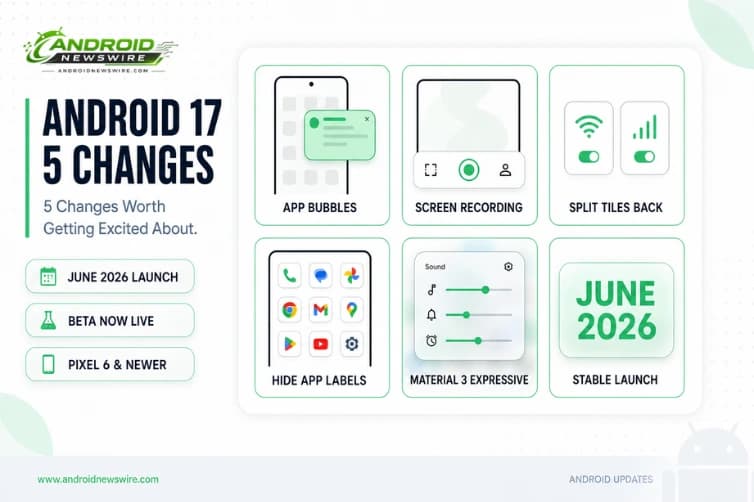
Android 17 is not trying to reinvent the phone. With a confirmed June 2026 stable launch — just a few weeks away — and the full consumer reveal scheduled for The Android Show on May 12, the picture of what Android 17 actually delivers to everyday users is now clear. Reviewers on the beta have been consistent: this is a polished, thoughtful update rather than a dramatic one. Android 17 is not a dramatic update. It is a careful one. And after spending time with the beta builds, that is the right framing — because the features it does deliver are the kind that improve your phone in ways you notice every day.
Here are the five changes that matter most.
1. App Bubbles — Any App Can Float Over Whatever You Are Doing
This is Android 17’s headline feature for everyday users, and it earns that status. Android 17 introduces a new feature called App Bubbles. As the name suggests, it lets you run full apps in floating windows on top of whatever you’re currently doing. We’ve seen similar ideas on some Android skins before, but this is the first time Google is building it in natively, which means Pixel phones and other devices will support it out of the box.
The way it works is simple. You just press and hold on an app icon and tap the bubble option. The app opens in a floating window that you can move around and use normally. When you’re done, tapping outside minimizes it into a small bubble that stays on your screen. You can have up to five bubbles running at once. You can even have multiple bubbles active at once and move them around together.
Think about how useful this is in practice. You are reading a long article and want to quickly check a definition — bubble a browser tab without leaving the app. You are in the middle of a navigation session and need to reply to a message — bubble Messages, reply, dismiss it, and your directions are still there. You are watching a tutorial video and following along in Notes — bubble Notes so you can see both simultaneously. If you’re watching a tutorial on YouTube and noting important steps on Google Keep, you’ll be able to convert Google Keep into a floating bubble for quicker access. When you tap the Keep bubble, the app will open in a small floating window, while the YouTube tutorial plays in full screen. This is better than switching between the two apps and using them in a split-screen view.
One genuine friction point worth knowing upfront: the only way to open a bubble right now is to go back to your home screen, long-press the icon, and tap the option. If you are already inside an app and want to bubble something else, you have to leave first. Samsung’s pop-up window avoids this entirely through the Edge Panel. Google’s version works, but it takes one extra step too many in practice. That is a real limitation in the current beta, and one worth watching to see if Google addresses before the stable release.
Where App Bubbles gets truly compelling is on larger screens. On large screens, a new bubble bar in the taskbar manages organized and anchored bubbles. Foldable phone owners and Pixel Tablet users will get the best experience — a persistent bubble bar on the taskbar that lets you snap apps into and out of floating windows without the home screen detour. With foldables becoming more common, I can see this being one of the most useful features once Android 17 rolls out.
2. Screen Recording Finally Makes Sense
Screen recording on Android has always worked. It has never been particularly pleasant to use. Android 17 fixes the small but persistent annoyances that have made the feature feel incomplete for years.
Now, when you start screen recording, you still get the option to record the entire screen or just a single app. Right there, you can also choose whether to record device audio, microphone audio, or show touches, which is especially useful for tutorials.
The ability to record a single specific app rather than the full screen is the most immediately useful change. Previously, recording a single app required recording the full screen and then cropping or editing afterwards — or using a third-party recorder. Now it is a single selection in the recording toolbar before you begin. For anyone making how-to videos, documenting a bug, or capturing a specific app interaction for customer support, this removes a step that should never have been there.
The screen recording toolbar has been redesigned, and users can now select only a specific app to be recorded or the entire screen. The visual settings — device audio, microphone, show touches — being surfaced in the initial toolbar rather than buried in settings means you no longer start recording, realise you forgot to turn on microphone, stop, re-enter the toolbar, and start again. Everything is in front of you before you press record.
After recording, the post-capture flow gets its own redesign. Instead of a status bar notification, you get a dedicated review screen with options to watch the clip, edit it in Google Photos, share it, start a new recording, or delete it immediately. The full recording workflow — from setting up to reviewing the output — has been thought through as a coherent experience rather than bolted together from separate system components.
3. Separate Wi-Fi and Mobile Data Tiles Are Back
This one sounds minor. It is not.
The return of separate Wi-Fi and mobile data toggles is the kind of fix that sounds minor until you remember how annoying the merged tile actually was. Google combined them into a single Internet tile in Android 12, and for years switching between Wi-Fi and mobile data required an extra tap inside a submenu.
That extra tap does not sound like much until you count how many times a day you hit it. At home wanting to switch to cellular to test if your app is responsive on mobile data. At work on a conference call and your Wi-Fi keeps dropping so you need cellular. In a building where the Wi-Fi is present but unusable and your phone stubbornly keeps connecting to it. Every one of those scenarios required navigating into the Internet tile’s expanded submenu rather than a single tap toggle.
Beta 3 splits them back. You will need to manually add the mobile data tile to your panel after updating. The Wi-Fi tile replaces the old Internet tile automatically. The Mobile Data tile you add manually. Once set up, each is a single-tap toggle with long-press to open the relevant settings — exactly how it worked in Android 11 and earlier, before the merger.
It is small, it is obvious in retrospect, and it took four Android versions to reverse. That makes it satisfying in a way that bigger features sometimes are not.
4. Hide App Labels for a Cleaner Home Screen
This is a feature that seems cosmetic until you try it — and then it is hard to go back.
Customisation gets a subtle but impactful upgrade. You can now disable app labels on your home screen through a simple toggle. The result? A minimalist, clutter-free layout that focuses purely on icons — perfect for users who prefer a clean aesthetic.
App icon labels have always been a visual compromise. They are useful when you first set up a phone and are still learning where everything lives. After years of muscle memory, they are mostly just text taking up space between icons and adding to the visual noise of a home screen grid. Hiding them turns the home screen into a clean arrangement of shapes and colours — more like a piece of art than a list of destinations.
The toggle is straightforward: once enabled, labels disappear across your entire home screen simultaneously. There is no per-icon control in the current beta — it is all or nothing. For users who run a densely packed home screen with many apps in a small grid, losing the labels entirely may be disorienting at first. But for users who run a minimal layout with a handful of frequently used apps and plenty of space, it is one of the most satisfying visual upgrades in recent Android memory.
Combined with Android 17’s Material 3 Expressive visual direction — springier animations, frosted glass system UI, more dynamic colour theming — the hide-labels toggle is part of a larger shift toward an Android that can look as premium and uncluttered as any competing platform.
5. Material 3 Expressive — Android Finally Looks and Feels Like a 2026 OS
The four features above are specific and functional. The fifth is less tangible but arguably more impactful in terms of raw daily experience.
Material 3 Expressive is the biggest visual overhaul to Android in several years, and Android 17 is where it rolls out broadly — not just to Pixel devices on quarterly updates, but to the entire Android ecosystem as the standard UI language. Gaussian Blur Effects: Google is doubling down on aesthetics. You’ll notice heavy blur effects in the volume panel, power menu, and notification shade, creating a more immersive, “frosted glass” look.
The blur effects are part of a larger coherence: icons, animations, transitions, and overlays have all been rethought under the same design language. When you pull down the notification shade and it blurs and layers over your content rather than covering it with a flat panel, the phone suddenly feels more dimensional. When a volume slider glides up with a spring physics response rather than a rigid linear movement, it feels more alive. When the long-press menu on an app icon responds with a satisfying bounce, the interaction feels deliberate rather than functional.
These are things that competitors — particularly Apple — have done well for years. Android 17 does not copy them; it arrives at a similar destination through Google’s own design vocabulary. The result is an Android that looks and behaves like it belongs in 2026 rather than 2022.
The practical implication is broader than aesthetics: Material 3 Expressive sets a new visual baseline that apps will be expected to match. Apps using standard Material 3 components will update their look automatically as the system theme evolves. Apps with heavily customised UI that built against older Material Design versions will increasingly look out of place against the system’s refined components. If your daily drivers include apps that have not updated their UI in a while, Android 17 may make that staleness more visible than it was before.
When Is Android 17 Coming and Which Devices Get It?
The stable Android 17 release is targeting June 2026, following Google’s Android Show event on May 12 and Google I/O on May 19-20. It supports Pixel 6 through Pixel 10, with Samsung, OnePlus, Motorola, and Xiaomi expected to follow in the months after.
Android 17 Beta 4 is the final scheduled beta. The current beta builds are stable enough for daily use on a secondary device. If you want to try any of the features covered above now, enrol your eligible Pixel at developer.android.com/about/versions/17/get. The final stable release is close enough that the beta experience is essentially final.
For non-Pixel users: expect Android 17-based updates from Samsung (One UI 9), OnePlus (OxygenOS), and Motorola in the months following the Pixel launch. Based on early participation — Motorola joined the Android 17 beta program alongside the Pixel devices — some OEMs may be closer to a fast follow than in previous years.