
Samsung One UI 9 Is Getting Its Most Powerful Home Screen Upgrade Yet — Dock Themes, Blur, and Five-Finger Gestures
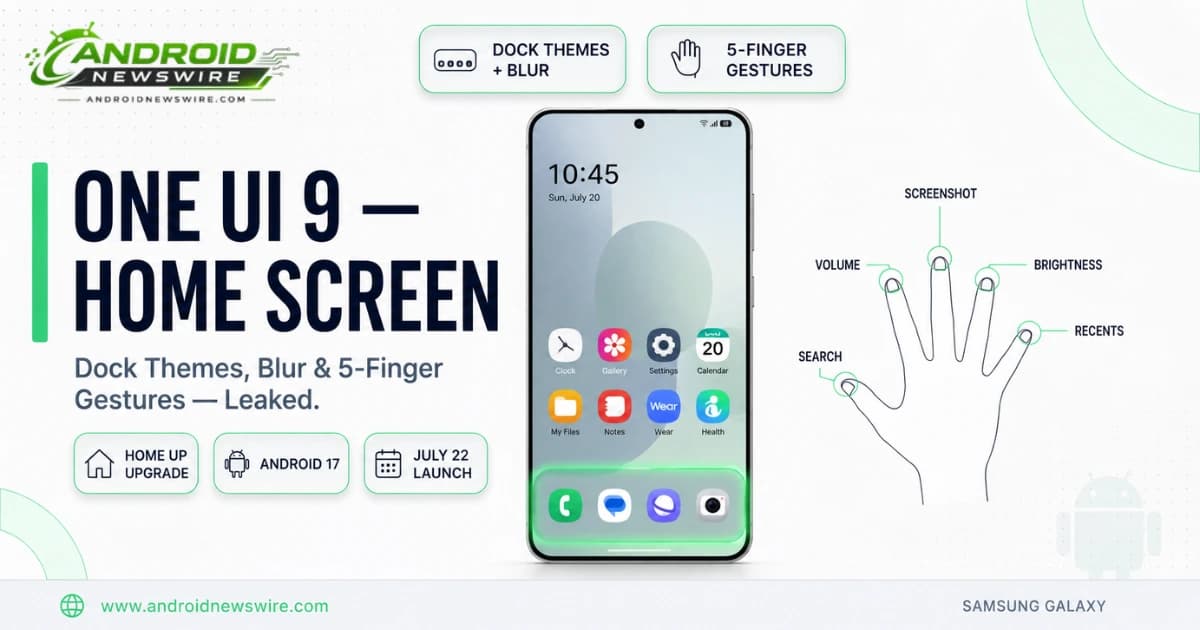
Samsung’s Good Lock suite has always been the power user’s playground for Galaxy customisation — the set of modules that turns a capable Android skin into a genuinely flexible personal operating system. With One UI 9, based on Android 17, the Home Up module inside Good Lock is getting its most significant upgrade yet. Early screenshots obtained by leaker GalaxyTechie on X reveal two headline additions: deep aesthetic controls for the home screen app dock, including custom background colours, images, and blur effects, and a comprehensive multi-finger gesture system that maps custom actions to combinations of up to five fingers simultaneously. Here is everything leaked, what it means for Galaxy users, and when it is coming.
What Is Home Up — and Why It Matters
Before the new features: a quick primer on Home Up for Galaxy users who haven’t explored Good Lock’s full capability.
Good Lock is Samsung’s official customisation suite — a collection of modules available through the Galaxy Store that extend One UI’s native customisation options significantly beyond what the standard settings offer. Good Lock’s most downloaded module has cleared 21 million cumulative downloads, establishing it as a mainstream tool rather than a power-user backwater.
Home Up is the Good Lock module specifically focused on the home screen experience. It already handles a substantial range of home screen behaviour: app folder configuration, grid sizing, the share menu, widget sizing, and freeform layout customisation. The One UI 8.5 update that landed earlier this year extended that further — adding widget content scaling, the option to strip blur from Samsung’s first-party widget backgrounds, and an integrated Edge Panel that consolidates apps, contacts, and tasks into a single swipeable surface.
One UI 9’s Home Up goes further still. Two specific new features surfaced in screenshots from the early Good Lock module build designed for One UI 9.
Feature 1: Dock Customisation — Background Colours, Blur, Images, and Independent Grid Scaling
Users will now be able to customize the background of the dock, adding colors, blur, or even images behind their most-used apps. You’ll also be able to adjust the number of apps that can appear in the dock, independent of the homescreen grid.
This is a surprisingly overlooked part of Android home screen design. The dock — the persistent strip of apps at the bottom of the screen — is the one element most users interact with on every single unlock. On stock Android and most Android skins, the dock has no independent background styling. Its visual appearance is dictated by the wallpaper and theme, with no way to give it a distinct look separate from the rest of the home screen.
Home Up’s One UI 9 update changes that entirely. The dock now supports:
Custom background colour. Apply any solid colour behind your dock apps — matching your wallpaper’s accent, contrasting for visibility, or coordinating with a complete home screen theme.
Custom background image. Set a separate image as the dock’s background. Combined with the right wallpaper choice, this enables visually layered home screen designs where the dock reads as a distinct panel rather than a floating strip.
Blur effect. Apply a frosted-glass blur to the dock background — consistent with the Liquid Glass aesthetic direction that Android 17’s system UI introduced and that One UI 9 extends throughout the Galaxy experience. The result is a dock that appears to float over the wallpaper with depth rather than sitting flat against it.
Corner radius control. Adjust how rounded the dock’s corners appear — from sharp-edged rectangular to softly pill-shaped, matching whatever corner radius treatment the rest of the home screen uses.
Shadow toggle. Enable or disable the drop shadow behind the dock — useful for making the dock feel more elevated or more integrated with the wallpaper depending on the visual style being built.
Independent app count adjustment. The number of apps that can appear in the dock is now adjustable independently of the home screen grid. Previously, dock capacity was typically tied to the grid column count — a 4-column grid gave you a 4-app dock. One UI 9’s Home Up decouples these, letting users choose a 5-app dock on a 4-column grid, or a 3-app dock for a cleaner look, without changing the home screen’s overall layout density.
Users can change the dock’s background color or set a custom image, toggle blur and shadow effects, and adjust the corner radius. Straightforward cosmetic controls, but they give users fine-grained visual consistency between the dock and the rest of their home screen setup.
For Galaxy users who invest time in home screen theming — matching widgets, icon packs, wallpapers, and colour schemes — dock customisation is the missing piece that has required workarounds or third-party launchers until now. Home Up’s One UI 9 update brings it into Samsung’s own ecosystem natively.
Feature 2: Multi-Finger Gesture Controls — Up to Five Fingers, Fully Configurable
Samsung is introducing a multi-finger gesture control layout that might be the most comprehensive system we have seen on a stock launcher. The interface will support simultaneous inputs using two, three, four, or even five fingers at once. You can map different actions to classic directional movements like swiping up, down, left, or right, alongside single taps, double taps, pinches, and long presses.
The supported actions cover a wide range of system functions. Instead of digging through settings menus, a quick multi-finger pinch or swipe can immediately take a screenshot, pull up a search window, adjust system volume, change display brightness, or launch your favorite application shortcuts.
The supported actions include taking a screenshot, switching between recent apps, opening the recents menu, or returning to the home screen. Swiping down with three fingers is one example of a supported gesture, though users can configure the mapping to suit their own habits.
The screenshot-via-gesture addition is particularly notable. Galaxy phones have long stuck with a palm swipe across the screen for screenshots. The palm swipe works, but it trips up users coming from devices where a three-finger downward swipe is the norm. Home Up now offers that finger-based alternative for One UI 9 users who prefer it.
The comprehensive configurable gesture system Home Up is introducing effectively gives Galaxy users a custom shortcut layer that sits on top of the standard One UI interaction model. Power users who currently rely on physical button combinations, accessibility shortcuts, or third-party gesture apps for quick system actions have a native, deeply customisable alternative arriving with One UI 9.
One important open question that Samsung has not yet answered: do these gestures fire inside apps, or only on the home screen? If the gesture system operates only on the launcher surface, its utility is significantly narrower than if it functions system-wide. The answer will likely become clear when One UI 9 stable reaches devices later this month.
The Broader One UI 9 Picture — Everything Else Coming With Android 17
The Home Up dock and gesture features are the freshest One UI 9 news today, but they arrive alongside a wider set of changes that Samsung has been detailing through the beta program since May.
Quick Panel redesign. You can now rearrange and customize the controls in your quick panel even more than before. You can change the size of the brightness and volume sliders as well as the media player. You can also separate the sound mode button from the volume slider.
Samsung Notes creative additions. The new Tape feature in Samsung Notes lets you cover parts of your note with tape and reveal them when needed. A variety of new pen styles have also been added, giving you even more options for writing and drawing.
Game Booster in-game controls. You can now access screen resolution, screenshot format, and more directly from the Game Booster panel without stopping gameplay — a quality-of-life improvement for mobile gamers who previously had to exit to settings to adjust performance options.
Privacy indicator improvement. A new blue location indicator makes it easier to identify when apps are accessing your location data — an addition that provides clearer real-time privacy feedback during app use.
Accessibility expansion. One UI 9 adds Text Spotlight for enlarged reading, improved keyboard and mouse accessibility controls, and Select to Speak functionality, alongside a dedicated “What’s new” section inside Accessibility settings for discovering the latest features.
Desktop improvements. It’s easier to move an app window from one desktop to another using the menu at the top of the window. Desktop previews are now available at the top of the Recents screen, making it easier to switch with a single tap. This improvement matters specifically for Galaxy Z Fold 8 and DeX users who work across multiple virtual desktops.
iOS-style widget redesign. One UI 9 Beta screenshots show that home screen widgets now look more like Apple’s iOS widgets — cleaner, more rounded, with better visual consistency across first and third-party widget providers.
Contacts app Creative Studio integration. The Contacts app now offers direct access to Creative Studio for creating personalised profile cards without needing to switch between apps.
When Is One UI 9 Coming to Your Galaxy Device?
The One UI 9 beta program launched quickly after internal testing. It is currently available via the Samsung Members app for eligible S26 users in supported regions. Multiple beta builds have been released so far: Beta 1 (May 13), Beta 2 (May 26), and Beta 3 (June 16). The public beta remains focused on the S26 series in the same supported countries.
Beta 4 is expected to arrive on the Galaxy S26 series in the coming days — it may bundle the July 2026 security patch that Samsung published this week with 57 CVE fixes.
For stable One UI 9 rollout: The stable One UI 9 rollout is expected in July 2026, starting with the new foldables. The global expansion for flagship devices is likely to take place between July and August 2026. Older flagships and mid-range devices should get the update from August to December 2026.
In practice, this means the Galaxy Z Fold 8 and Galaxy Z Flip 8 — announced at Galaxy Unpacked on July 22, just 13 days from now — will ship with One UI 9 and Android 17 pre-installed. The Galaxy S26 series stable One UI 9 update should follow in July or August. The Galaxy S25, S24, and eligible A-series devices will receive it progressively through the second half of 2026.
The One UI 9 beta program is open now for Galaxy S26 series devices, and will presumably expand to others in the coming months. To join on an eligible Galaxy S26 device: Samsung Members app → More → Notice → One UI Beta Program. Once enrolled, the update appears through Settings → Software update → Download and install.
Why This Matters — Samsung vs Stock Android Customisation
The Home Up additions in One UI 9 illustrate one of Samsung’s most consistent long-term software advantages over stock Android and even the Pixel experience: the depth and granularity of personalisation available to users who want it.
Android 17 on Pixel brings Material 3 Expressive animations, expanded system blur, and the new Noto 3D emoji. These are excellent visual improvements. But there is no native mechanism on stock Android 17 for applying a custom blurred background behind the dock, assigning a three-finger swipe to take a screenshot, or building a layered home screen with dock theming independent of the wallpaper.
Samsung’s Good Lock suite — and Home Up specifically — has always represented a different philosophy: provide the mainstream One UI experience for most users, and give power users a structured, supported set of tools to go much deeper when they want to. The One UI 9 Home Up update extends that depth further than any previous version.
For Galaxy users who have never opened Good Lock: Samsung Members → Galaxy Store → search “Good Lock” → install → open and install the Home Up module. With One UI 9, it is worth exploring.